

You got an email from a board member asking whether the association’s website is accessible. Maybe it was a demand letter. Either way, you don’t have a developer to call. Here’s the truth about association website accessibility: part of it is a content job your team can drive right now, and part of it genuinely requires code. This post splits those two things clearly.
Association website accessibility is a legal exposure, not a nice-to-have
Let me start with the legal reality, because that’s usually what’s in the board email.
Most 501(c)(3) associations operate as places of public accommodation under ADA Title III. That means inaccessible donation forms, event registration pages, and member renewal portals are not just usability problems. They are the specific failure points that draw complaints and lawsuits. Over 4,600 digital accessibility lawsuits were filed in 2023 alone. Nonprofits appear in those numbers consistently, over donation forms and program portals.
The standard courts and the Department of Justice point to is WCAG 2.1 Level AA. No formal technical standard has been codified for private entities, but WCAG 2.1 AA is what legal counsel will tell you to target. The DOJ formally applied it in its April 2024 Title II final rule for state and local government. This context matters for associations running programs in partnership with public entities, even if you aren’t government yourself. Federal grant funding also brings Section 504 and 508 obligations that track closely to the same standard.
Members with disabilities are a real share of your membership, not a theoretical constituency. A site that locks them out of renewing, registering for your annual conference, or accessing your advocacy materials is a member-retention failure before it is a legal one. Treating accessibility only as a compliance checkbox misses half the argument.
A site that locks members with disabilities out of renewing or registering is a member-retention failure before it’s a legal one.
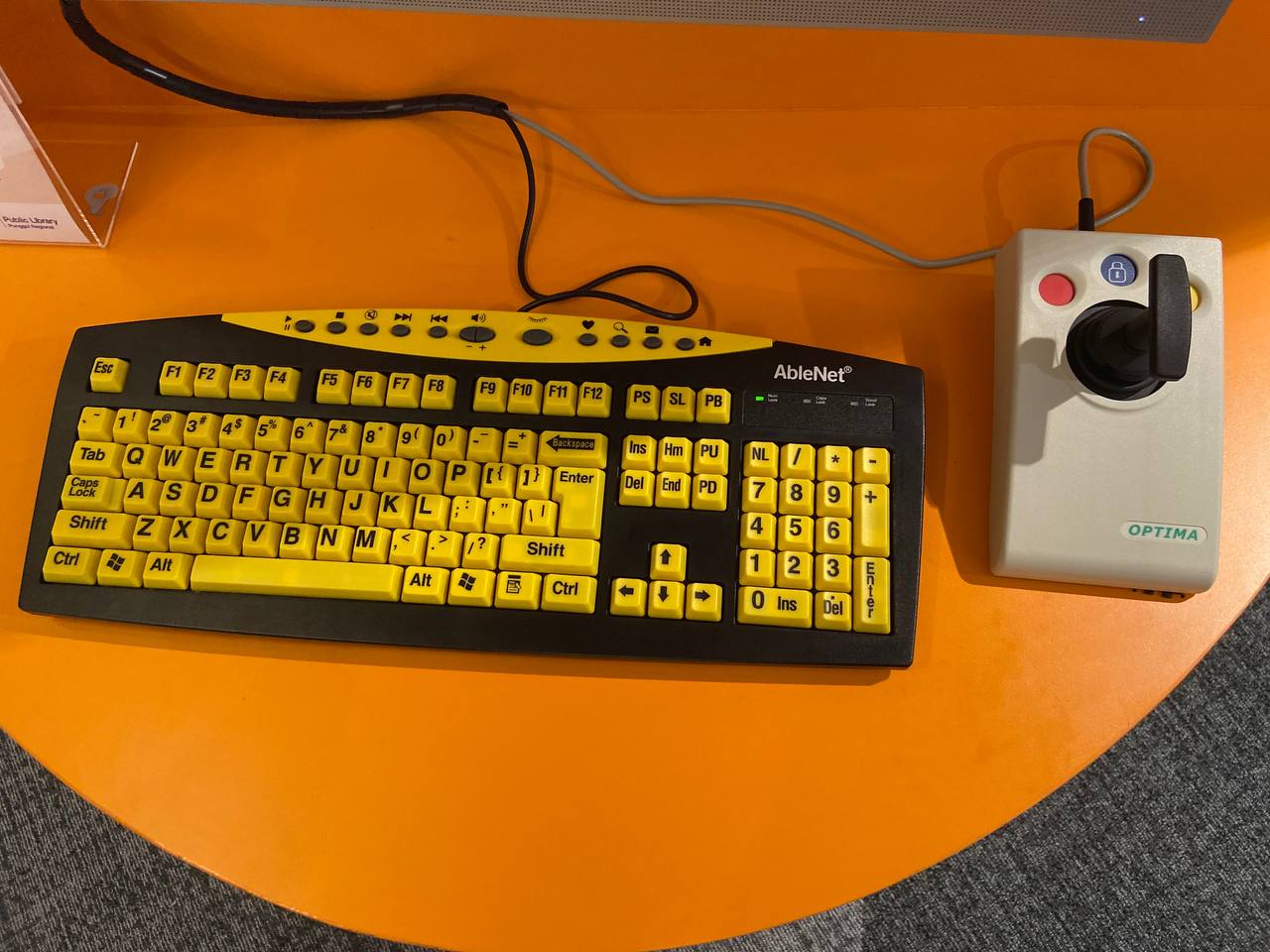
Access to the full picture, including where accessibility fits in your site’s long-term health, is part of what I lay out in your broader association website strategy.
What you can actually fix without writing a line of code
Here’s where I want to be honest with you: more is in your hands than you probably think. Some work requires a developer. I’ll cover those developer-side items below. But most of the content and configuration work is substantial, and your team can own it.
Run a free audit so you know what you’re dealing with
Before you fix anything, you need a map. Install a free browser tool such as WAVE from WebAIM, axe DevTools from Deque, or Google Lighthouse built into Chrome’s DevTools. Run it on your highest-traffic pages: home, join or renew, events, donate.
These tools tag errors against WCAG criteria and tell you whether each problem is a content issue or a code issue. Run them page by page, not as a site-wide crawl. A crawl-level view obscures which pages actually need attention first.
One honest caveat: automated tools catch roughly 30-40% of WCAG issues, per W3C’s own estimates. A clean automated scan is not a compliant site. It’s a starting map, not a certificate. That distinction matters when your board asks if you’ve been “tested.”
Fix your color contrast: the most common failure and the easiest win
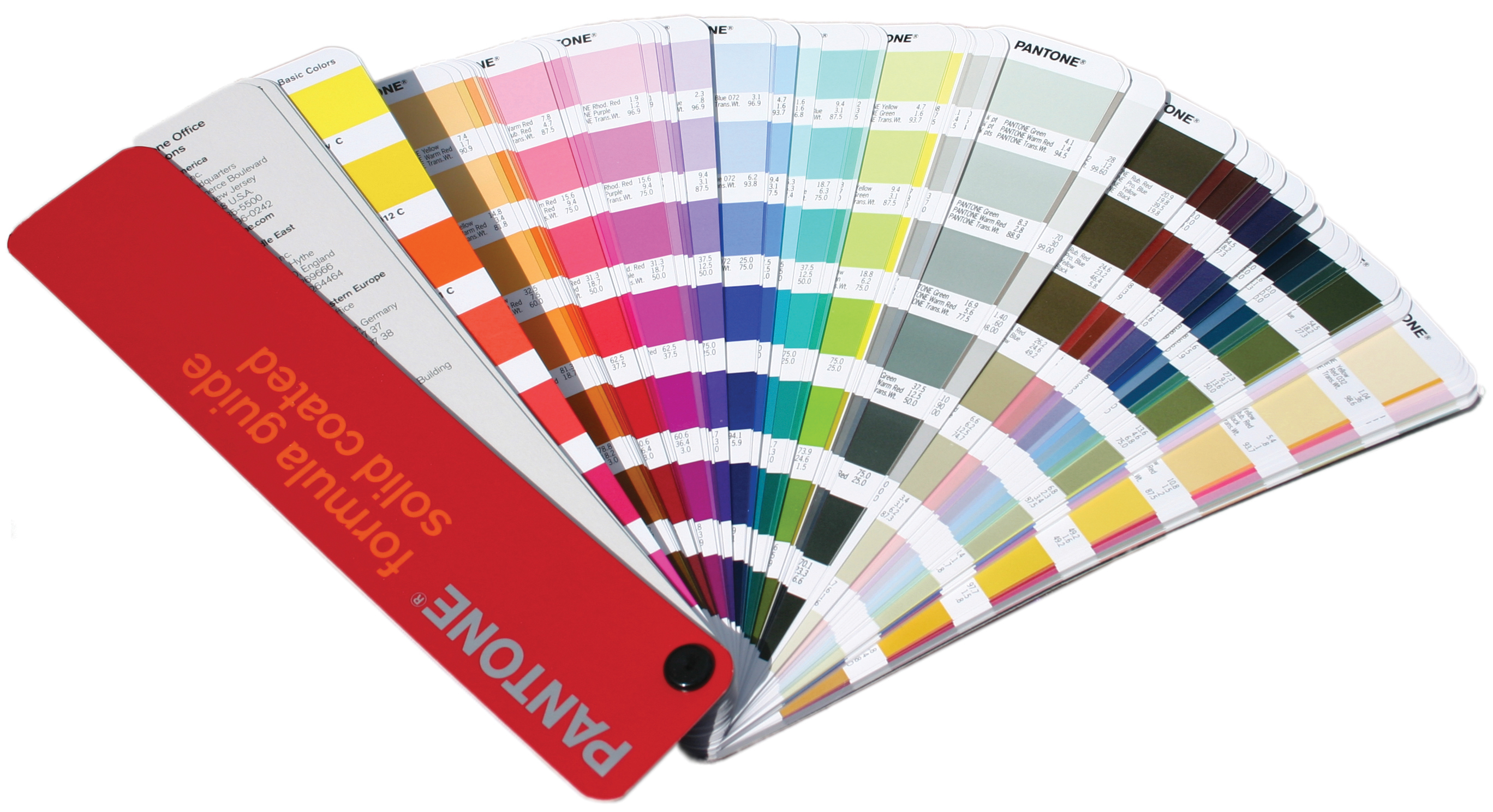
Color contrast failures are among the most widespread WCAG violations, and most of them are fixable without touching code. Use the WebAIM Contrast Checker to test your text against its background. WCAG 2.1 AA requires a 4.5:1 ratio for normal text and 3:1 for large or bold text.
What you’re looking for: light gray body text on a white background (a very common “elegant” design choice that fails), low-contrast call-to-action buttons, and text placed over photo backgrounds. If your brand colors fail the test, you don’t have to abandon them. You need a tested accessible variant for web use. A designer can build that. No developer required.
Write real alt text on every meaningful image
This is pure content work. In your CMS media library, add concise, descriptive alt text that tells a screen reader what the image conveys and why it’s there. “Map showing the 2026 annual conference venue in Chicago” is the right shape. “Image” is not.
Purely decorative images, such as background flourishes, spacer graphics, and design elements that carry no information, should use empty alt attributes (alt=””) so screen readers skip them entirely.
The common mistakes here: stuffing alt text with search terms, writing descriptions of decorative images at length, and leaving the alt blank on functional ones. Infographics, event maps, and logos that link somewhere are functional images. They need real alt text.
Test the site with your keyboard only

Put the mouse down. Open one of your highest-traffic pages (the join form, event registration, or donate page) and tab through it. Can you reach every link, button, and form field using only the Tab key? Is there a visible focus outline showing where you are on the page? Is there a “Skip to main content” link at the top?
Keyboard operability is a core WCAG requirement. It’s also the fastest way to find broken menus, navigation traps, and invisible focus states without any tooling at all.
Custom dropdown menus, modal popups, and sliders are the usual offenders. They work fine with a mouse and trap keyboard users completely. Note which ones fail. Some of those fixes require code work, which I address below.
Label your forms properly, especially join, renew, and donate
Forms are where associations lose members and where lawsuits land. That’s not a developer problem — it’s a content operations problem. Donation forms, membership registration, and event registration are the most-cited nonprofit accessibility failure points.
Forms are where associations lose members and where lawsuits land. That’s not a developer problem — it’s a content operations problem.
Every field needs a visible, programmatic label. Placeholder text is not a substitute. Placeholder text disappears the moment someone starts typing, which means it’s useless to anyone who needs to look back at what a field asks for. Error messages should name the field and name the problem. “This field is required” doesn’t help. “Email address is required” does.
Many of these label fixes are achievable in your form-builder’s own settings, without touching code. Check your form plugin’s accessibility configuration before assuming you need outside help.
Build accessibility into how your team authors content from now on
Most accessibility debt gets created one post, one page, one event listing at a time by content authors who don’t know the rules. Fixing the habit stops the bleeding. You shouldn’t need to re-audit every quarter because your team keeps recreating the same errors.
Accessible content authoring in practice: one H1 per page (the post or page title), logical H2 and H3 structure that reflects the actual content hierarchy, descriptive link text instead of “click here” or “read more,” captions on video, and tables and lists built semantically in the editor rather than faked with spaces and line breaks.
The most common authoring mistake I see: styling text to visually look like a heading by making it bold, large, and dark, instead of using actual heading levels in the CMS editor. Screen readers navigate by heading structure. Fake headings are invisible to them.
The traps that make associations think they’re compliant when they aren’t
The overlay trap
You’ve seen the pitch: an accessibility widget, a floating icon that lets visitors adjust font size, contrast, and other display settings, promises WCAG compliance from a single plugin install. Don’t buy it.
Overlay tools don’t deliver real conformance. They add a thin interface layer over an underlying codebase that remains as inaccessible as it was before. These overlays can also actively interfere with screen readers and assistive technology that users already have configured. According to UsableNet’s 2024 report, 25% of digital accessibility lawsuits in that reporting period targeted sites that were already using overlay tools. The overlay is not a legal shield. In practice, it is evidence that the organization knew about the problem.
The “we passed the scan” trap
If your team runs WAVE or Lighthouse and gets a clean result, that’s a starting point, not a clean bill of health. Automated tools catch approximately 30-40% of WCAG issues. Keyboard logic, focus order, meaningful content sequence, and screen-reader semantics only surface through manual testing. A clean automated scan means you’ve addressed the visible, mechanical errors. It does not mean a screen-reader user can successfully complete your membership renewal form.
The honest developer split
Some things genuinely require a developer. Being clear about this is part of what makes your accessibility work credible rather than performative.
Code-side items that need a developer or your AMS vendor: custom interactive widgets (dropdown menus, modal windows, carousels, date pickers), ARIA roles and states for dynamic content, focus management in JavaScript-driven components, accessible PDF remediation at scale, and member portal markup when the platform vendor controls the code.
Associations running iMIS or MemberClicks portals should ask their vendor directly about current WCAG conformance and their remediation roadmap. That markup is the vendor’s responsibility, not yours.
When structural accessibility problems run deeper than content fixes can reach, a redesign assessment is worth considering. Retrofitting accessibility into an aging theme costs more in the long run than building an association website right from the start with accessibility built in. And if your audit reveals that compounding structural problems are the norm across your site, it’s worth understanding what redesigns that ignore the fundamentals, including accessibility, actually leave behind before scoping a cosmetic refresh that won’t hold.
Frequently Asked Questions
Do associations and nonprofits legally have to be ADA compliant online?
Yes, in practice. Most 501(c)(3) associations operate as places of public accommodation under ADA Title III, which courts have consistently applied to websites. The DOJ has not issued a formal technical standard for private entities, but WCAG 2.1 Level AA is the consistent benchmark courts and regulators point to. If you take federal grant funding, Section 504 and 508 obligations create a parallel compliance track.
What level of WCAG do associations need to meet?
WCAG 2.1 Level AA is what courts, the DOJ, and accessibility counsel consistently reference for private entities under Title III and for government-adjacent programs under Title II. Level A is the floor; AA is the target. Level AAA is aspirational and not a practical requirement for most associations.
Can I make my association’s website accessible without a developer?
Partly. Color contrast, alt text, form labels, content structure, and descriptive link text are all content and configuration work your team can drive without writing code. Custom interactive widgets, ARIA roles, focus management in dynamic components, and AMS portal markup require developer or vendor involvement. That split is real. Don’t let anyone tell you it’s all a self-service fix, and don’t let anyone tell you to hand everything to a developer.
Do accessibility overlay widgets make my site compliant?
No. Overlay tools add a user-facing adjustment layer over an inaccessible underlying codebase without remediating the code. According to UsableNet’s 2024 analysis, 25% of digital accessibility lawsuits in that reporting period targeted sites already running overlay tools. The overlay is not a compliance defense.
How much does it cost to make an association website accessible?
It depends on where you’re starting. Content fixes like alt text, heading structure, form labels, and contrast cost staff time, not outside contracts. Code fixes vary by complexity and the age of your theme or CMS. An accessibility audit from a specialist typically runs from $3,000 to $10,000 for a site of moderate complexity. Retrofitting an aging theme often costs more than rebuilding with accessibility built in from the start.
What are the best free tools to check website accessibility?
WAVE from WebAIM, axe DevTools from Deque, Google Lighthouse built into Chrome DevTools, and Pa11y are all free starting points. The WebAIM Contrast Checker is the go-to for color contrast specifically. W3C’s WAI maintains a full evaluation tools list. None of them replace manual testing, but they surface the mechanical errors quickly.
How often should an association audit its website for accessibility?
At minimum, after any major content push, redesign, or new feature launch. In practice, quarterly automated scans plus a manual review of your core member-facing flows (join, renew, event registration, donate) twice a year is a reasonable baseline for a lean team. Accessibility is not a one-time project. Every new form, every new interactive element, is a potential new issue.
More on association website strategy
- Signs Your Association Website Needs a Redesign (Not Just a Refresh)
- Member-Centered Navigation: Designing an Association Site Members Actually Use
- How Adtelic Rebuilt artdesignideas.com for Speed and Search
If your audit surfaced structural problems (inaccessible themes, broken interactive components, AMS portal gaps), those aren’t content fixes. Before you scope anything, it helps to plan the redesign properly. I work with associations to assess what a rebuild needs to address, including the structural issues that cosmetic changes leave behind. Schedule a Redesign Assessment, and I’ll help you understand what you’re actually looking at.
Planning an association website redesign? Adtelic does this work directly: member research first, AMS-aware architecture, and a site your team can run without calling an agency every time something needs to change. See association website redesign. If the more pressing question is where AI belongs in your marketing operation, start with the fixed-fee AI Readiness Audit: two to three weeks, a written plan, and a straight answer. If you would rather start with something free, the AI Readiness Scorecard scores your operation in three minutes and does not ask for your email to show you the result.